
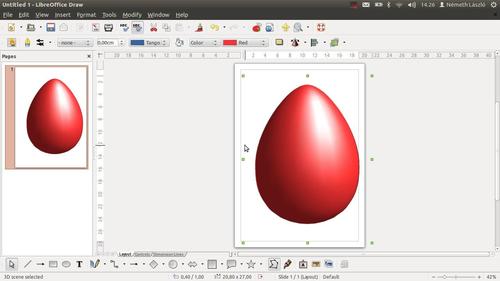
This LibreOffice Draw tutorial video is a funny by-product of the development of LibreLogo educational materials (more information in the description of the video):
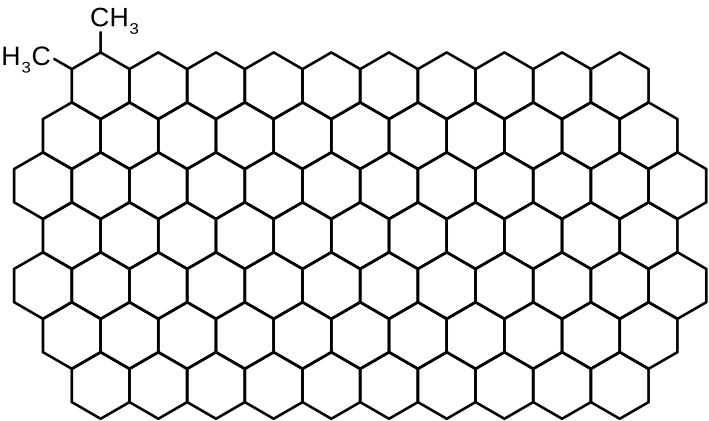
1,2-dimethyl-chickenwire

Hungarian and Norwegian educational materials
E-Governmental Free Software Competence Centre of Hungary has published a free LibreLogo textbook (PDF, 6 MB) for primary and secondary schools of Hungary. The book is based on the teaching experiences of the author, Viktória Lakó, and according to its subtitle (“from turtle graphics to the graduation in programming”), it covers a wide area from turtle graphics to the secondary school-level introduction of algorithms and data structures.
Kolbjørn Stuestøl, author of the Norwegian localization of LibreLogo, has introduced on the user support list of LibreOffice a Norwegian LibreLogo tutorial with nice examples and illustrations. The English translation of the tutorial is under development.
Color and transparency gradients
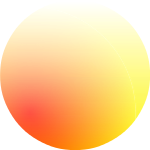 LibreOffice 4.3 (see daily builds of its development version) will support color and transparency gradients in LibreLogo:
FILLCOLOR [“YELLOW”, “RED”, 2, 0, 0, 25, 75]
FILLTRANSPARENCY [100, 0]
CIRCLE 100
FILLCOLOR defines a radial color gradient, from yellow to red, the center is positioned horizontally 25% and vertically 75% from the left upper corner of the shape. FILLTRANSPARENCY defines a linear transparency gradient, too.
 Next example shows linear color and radial transparency gradients:
FILLCOLOR [“YELLOW”, “RED”]
FILLTRANSPARENCY [100, 0, 2, 0, 0, 25, 75]
CIRCLE 100
 This code draws circles with random color gradients:
PENUP
REPEAT 100 [
    FILLCOLOR [ANY, ANY]
    CIRCLE 20 + RANDOM 130
    POSITION ANY
]
UI/UX fixes
As mentioned in the first post, last LibreOffice UX hackfest has resulted also a small LibreLogo fix for program translation. Recent update of LibreLogo has got greater improvements in the user interface:
-
Program editor: “Magic wand” icon sets also page zoom and a page break, resulting the suggested 2-page layout for Logo program editing.
-
Start fix + brief demonstration: Start icon inserts and starts a programming example in an empty document. This fixes the confusing UI problem of LibreLogo: when the user tries to run the content of the input field of the Logo toolbar with the Start icon (instead of the Enter), there is no any visual feedback in an empty document. The small, localized and modifiable example introduces some basic features of LibreLogo (PENUP/PENDOWN, LABEL, REPEAT/REPCOUNT, color settings, PICTURE), helping to start programming.
-
Now the “Magic wand” icon precedes the long input field on the Logo toolbar: vertical docking of the toolbar doesn’t remove this icon, also the undocked toolbar doesn’t break the icons into three rows unnecessarily. This modification was suggested by Gilvan Vilarim, Brazilian Portuguese translator of LibreLogo.
-
Fixed document handling: “Saving as” doesn’t create a new turtle in the document, and the Logo toolbar uses the current document instead of the old ones (for example, renamed “Untitled 1”).
-
Fixed text selection: program running keeps the selection of the turtle, if it was selected at the start of the program, instead of selecting the text of the document wrongly.
-
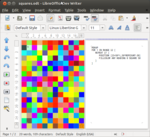
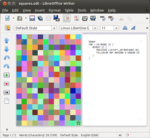
Not a user interface, but a spectacular user experience improvement is the new random color generator, checked with the following program on the attached screenshots:
PENUP
FOR i IN RANGE 12 [
    REPEAT 17 [
        POSITION [23+50*i, 50*REPCOUNT-30]
        FILLCOLOR ANY
        HEADING 0
        SQUARE 50
    ]
]
Word squares
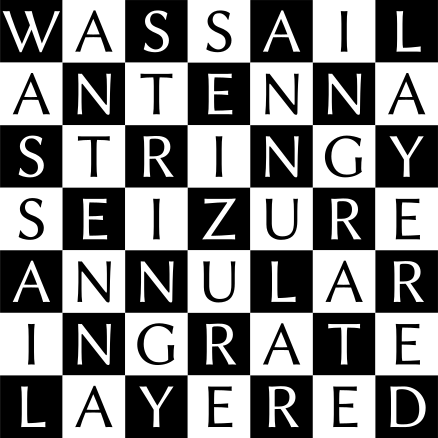
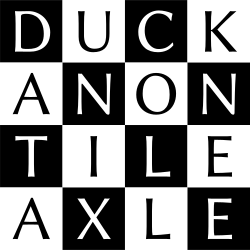
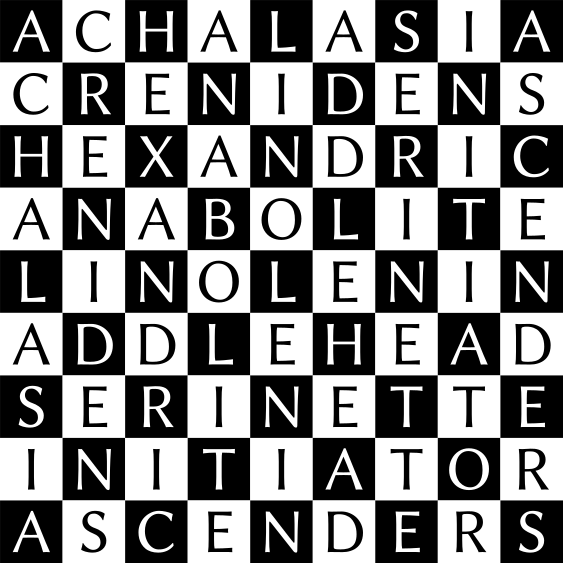
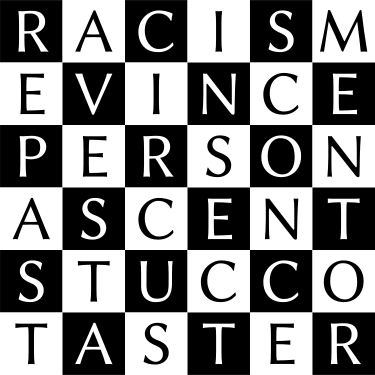 The LibreLogo program draws checkered word squares in this example (see in SVG format: 6×6, 7×7, 4×4, 9×9).
The 6×6 and 7×7 word squares were found by Douglas McIlroy (see on his home page). He was the head of the research department at Bell Labs at the time of the birth of the Unix operating system, also a famous contributor of Unix (Unix pipes, manual, spell checking etc.), that is why the word “Unix” is in the third word square. Word square article of Wikipedia refers the last, 9×9 example as one of the largest known word square in English. Word squares bővebben…
LibreLogo poster
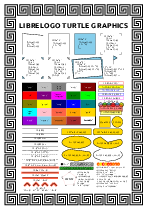 This PDF poster summarizes the most important commands of LibreLogo, including the new PENCAP/LINECAP. See also its source document with LibreLogo source code to generate multilingual posters.
Logo in LibreOffice 4.2
-
PENCAP (or LINECAP) command. Its text arguments are the default “NONE”, furthermore “ROUND” and “SQUARE”. Source code of the attached picture:

TO twolines
    PENDOWN PENSIZE 20 PENCOLOR “TOMATO”
    FORWARD 200
    PENSIZE 2 PENCOLOR “BLACK”
    BACK 200
    PENUP RIGHT 90 FORWARD 40 LEFT 90
END
HIDETURTLE
PENCAP “NONE”
twolines
PENCAP “ROUND”
twolines
PENCAP “SQUARE”
twolines
Unconnected thick lines could seem to be continuous with the new linecap settings, as in this SVG animation (random walk).
-
FORWARD “text” command: the turtle prints the text and moves to the end of the text, so it’s possible to continue the text with a similar command. The code of the attached picture:

PENUP
FONTCOLOR “GREEN”
FORWARD “LIBRE”
FONTCOLOR “GRAY”
FORWARD “LOGO”
-
Stable batch generation of cropped SVG images. Examples: Images with LibreLogo source code. The next program generates ten regular polygons from the equilateral triangle to the regular 12-gon:
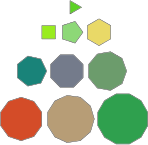
TO polygon n FILLCOLOR ANY REPEAT n [ FORWARD 20 RIGHT 360/n ] FILL END REPEAT 10 [ PICTURE “polygon%s.svg” % REPCOUNT [ polygon REPCOUNT + 2 ] ] -
Optional looping of SVG animations (it needs only a SLEEP command after the last shape). Source code of the attached random walk illustration:

PENCAP “ROUND” PENSIZE 5 HIDETURTLE PICTURE “random_walk.svg” [ REPEAT 50 [ SLEEP 50 HEADING 90 * INT RANDOM 4 FORWARD 20 ] SLEEP 50 ] -
Relative SVG image path of PICTURE is relative to the path of the document (or in the case of a new document without any saving the default path is the root of the user folder).
LibreLogo at FOSDEM 2014
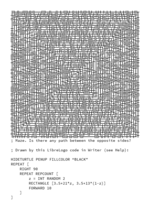
Here is the A4 size LibreLogo flyer made for the LibreOffice booth at FOSDEM 2014. It contains a maze and its compact LibreLogo source code. This SVG animation shows its work. The source code of the program:
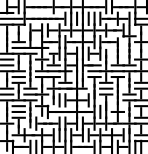

HIDETURTLE PENUP FILLCOLOR “BLACK”
REPEAT [
    RIGHT 90
    REPEAT REPCOUNT [
        z = INT RANDOM 2
        RECTANGLE [3.5+21*z, 3.5+13*(1-z)]
        FORWARD 10
    ]
]
One of the results of the 2-day LibreOffice hackfest after the conference is a small improvement for LibreLogo: now code formatting/translation doesn’t modify the comments of the program (see this and other achievements of the hackfest).